

---恢复内容开始---
---恢复内容结束---
一、linux中对服务管理与控制(以sshd为例)
1.什么是服务
可以用来给客户提供相关操作,对自己没有什么好处
3.当前系统初始化进程是什么
systemd 系统初始化进程
pstree 显示系统中的进程树
4.进程控制命令
ssh -------->sshd(ssh用为客户端,主要进行服务器端的连接;sshd用为服务器端)
注意:也可以使用init 5使界面图形化当使用关闭sshd关闭服务的时候 ,sshd状态会发生改变(此时状态为dead),此时不可以进行连接
- 使用开启命令的时候,状态为running
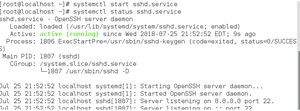
- 默认情况下,sshd服务是开机时自启动的,也可以进行设置。以下设置sshd为开机不是自动启动
重启后,不可以使用ssh服务
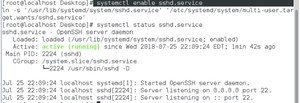
- 使用命令设置sshd服务开机为自启动(开机后就可以直接进行登)
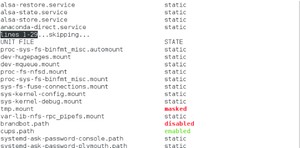
- 使用命令systemctl list-unit-files 来列出所有服务开机启动的状态 (disable,enable,static)
二、sshd服务
1.sshd介绍
sshd为secure shell的简称;可以通过网络在主机中开机shell的服务
注意:
第一次链接陌生主机是要建立认证文件,然后会询问是否建立,需要输入yes
再次链接此台主机时,因为已经生成~/.ssh/know_hosts文件所以不需要再次输入yes
- 示例:把177主机下/mnt/file1文件上传到 172.25.254.97主机的/root/Desktop/目录下:
[root@localhost mnt]# ls niu/
file1 file2 file3 file4 file5
[root@localhost mnt]# scp niu/file1 root@172.25.254.97:/root/Desktop/
file1 100% 0 0.0KB/s 00:00
此时可以在97主机下的桌面上看到file1:
[root@localhost Desktop]# ls
file1
- 示例:把97主机桌面下的file文件下载到177主机的/mnt/目录下:
file 100% 0 0.0KB/s 00:00
此时可以在177主机上/mnt/目录下可以看到file文件
file niu root@172.25.254.97
【1】生成认证KEY
[root@localhost ~]# ls -a
. .bash_logout .config Downloads Music Templates
.. .bash_profile .cshrc .esd_auth Pictures Videos
anaconda-ks.cfg .bashrc Desktop .ICEauthority Public .viminfo
.bash_history .cache Documents .local .tcshrc
[root@localhost ~]# ssh-keygen
Generating public/private rsa key pair.
Enter file in which to save the key (/root/.ssh/id_rsa):
Created directory '/root/.ssh'.
Enter passphrase (empty for no passphrase):
Enter same passphrase again:
Your identification has been saved in /root/.ssh/id_rsa.
Your public key has been saved in /root/.ssh/id_rsa.pub.
The key fingerprint is:
8c:23:ee:39:11:6b:e6:af:a3:76:b1:00:a5:6e:d1:d3 root@localhost
The key's randomart image is:
+--[ RSA 2048]----+
| |
| . |
| o. . |
|o. o.E o |
|... ooo S |
| o..*. . |
|. =.+ |
| ..*. |
| ..o+=. |
+-----------------+
使用命令:ssh-copy-id -i /root/.ssh/id_rsa.pub root@id
[root@localhost .ssh]# ls
id_rsa id_rsa.pub
The authenticity of host '172.25.254.97 (172.25.254.97)' can't be established.
ECDSA key fingerprint is eb:24:0e:07:96:26:b1:04:c2:37:0c:78:2d:bc:b0:08.
Are you sure you want to continue connecting (yes/no)? yes
/usr/bin/ssh-copy-id: INFO: attempting to log in with the new key(s), to filter out any that are already installed
/usr/bin/ssh-copy-id: INFO: 1 key(s) remain to be installed -- if you are prompted now it is to install the new keys
root@172.25.254.97's password:
Number of key(s) added: 1
Now try logging into the machine, with: "ssh 'root@172.25.254.97'"
and check to make sure that only the key(s) you wanted were added.
authorized_keys id_rsa id_rsa.pub known_hosts
(此时authorized_keys文件,生成代表97主机加密成功;id-rsa为钥匙,id_rsa.pub为锁)
使用命令: scp /root/.ssh/id_rsa root@id:/root/.ssh/
authorized_keys id_rsa id_rsa.pub known_hosts
[root@localhost .ssh]# scp id_rsa root@172.25.254.177:/root/.ssh/
The authenticity of host '172.25.254.177 (172.25.254.177)' can't be established.
ECDSA key fingerprint is eb:24:0e:07:96:26:b1:04:c2:37:0c:78:2d:bc:b0:08.
Are you sure you want to continue connecting (yes/no)? yes
Warning: Permanently added '172.25.254.177' (ECDSA) to the list of known hosts.
root@172.25.254.177's password:
id_rsa 100% 1679 1.6KB/s 00:00
在177主机下进行验证:
id_rsa known_hosts
【4】测试
在客户主机中(172.25.254.177)输入命令:ssh root@172.25.254.97
Last login: Wed Jul 25 23:10:43 2018
此时不需要进行root用户的登陆,直接连接成功
3.sshd的安全设定
PasswordAuthentication yes|no 是否允许用户通过登陆系统的密码做sshd的认证,(在78行也可登录其他用户密码)
PermitRootLogin yes|no 是否允许root用户通过sshd服务的认证(48行)
Allowusers student westos 设定用户白名单,白名单出现默认不再名单中的用户不能使用sshd
Denyusers westos 设定用户黑名单,黑名单出现默认不再名单中的用户可以使用sshd
注意:在服务端修改文件的配置:vim /etc/ssh/sshd_config
配置完成之后要重启服务:systemctl restart sshd.service
版权声明:
本文来源网络,所有图片文章版权属于原作者,如有侵权,联系删除。
本文网址:https://www.mushiming.com/mjsbk/12431.html